
Why Isn’t My Site Indexed? A Founder’s Diagnostic
Noindex tags, robots.txt, new-site timing, per-platform gotchas. A five-step diagnostic for why your pages aren't showing up.
 By David Jubé · Jun 1, 2026 · 13 min read
Run this check first. Search site:yourdomain.com in Google. If nothing comes back, you are not indexed, and no amount of content or keywords will help until that is fixed.
Indexation is the Critical tier of technical SEO because it is binary: Google either has your pages or it does not, and a page Google has not indexed cannot rank at any position, for any query, ever. The most common cause is a single accidental “noindex” tag, defined fully in Step 2 below.
This is a diagnostic, not an essay. Below are five steps.
The five steps:
- Are you actually indexed? (
site:search and URL Inspection) - Is there an accidental noindex tag?
- Is robots.txt blocking your own site?
- Is the site just new?
- Is it canonicals, redirects, or a manual action?
Then a section on the platform gotchas specific to Shopify and Wix, and what to do once you have fixed it.
Key takeaways
- Indexation is binary and the precondition for everything downstream: search site:yourdomain.com first, because a page Google has not indexed cannot rank at any position, for any query, ever.
- Work a five-step diagnostic top to bottom, from the common causes to the rare ones: confirm indexing, check for an accidental noindex tag, a robots.txt Disallow rule, new-site timing, then canonicals, redirects, or manual actions.
- An accidental noindex tag, often left on by a theme or plugin, is the leading cause of an invisible page, while a stray robots.txt Disallow: / rule blocks the entire site from crawling.
- A brand-new site with no backlinks can simply be queued, taking days to weeks; once you remove a block, request indexing once in URL Inspection and submit your sitemap, then wait.
The answer: a five-step diagnostic, run in this order
Indexation problems feel mysterious because the site looks fine to you. It loads in your browser, the pages are there, nothing is broken. The break is between your site and Google, and you cannot see it from the front end.
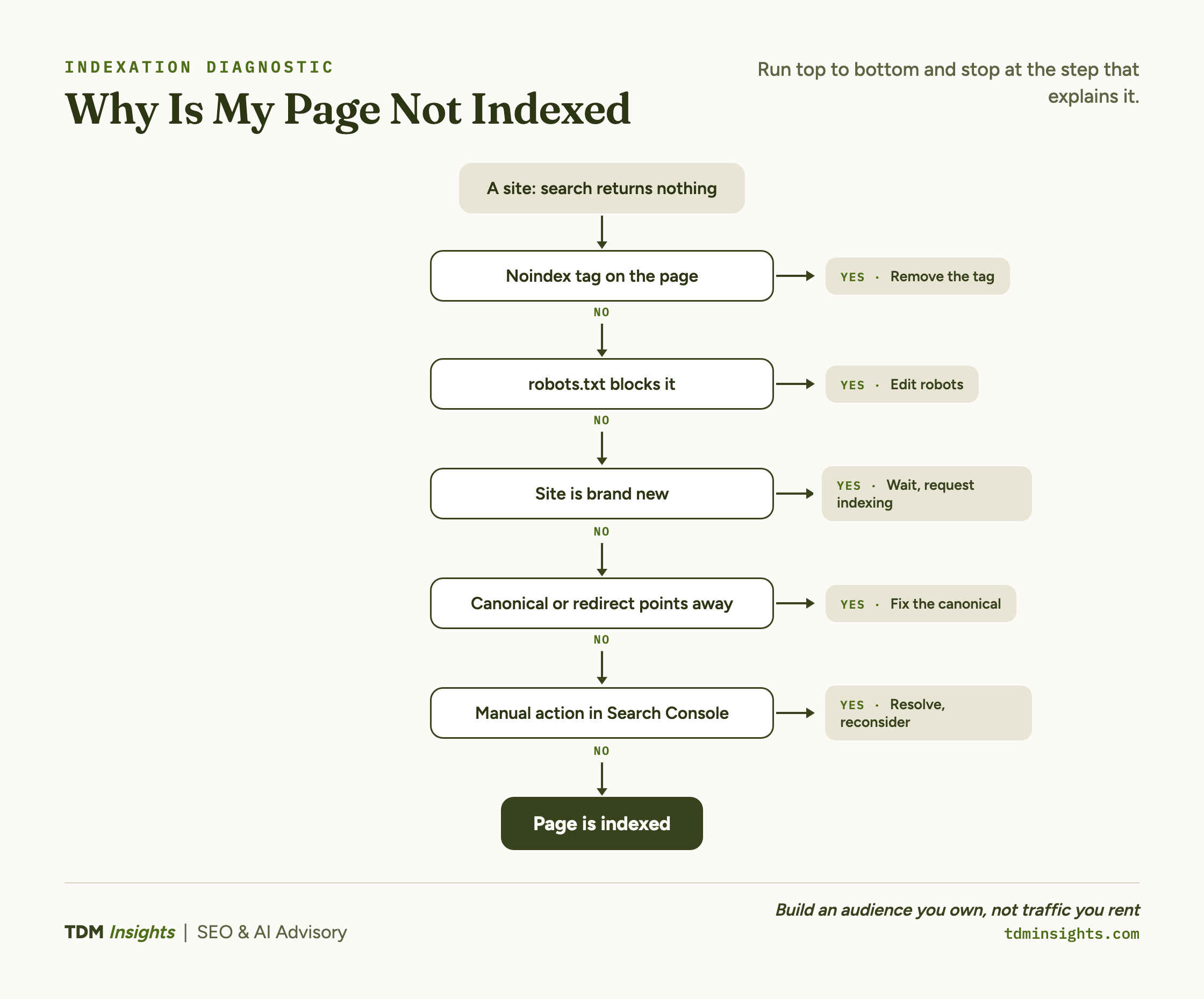
The order of the five steps is deliberate. They run from most common and easiest to check, to least common and hardest. A noindex tag is far more frequent than a manual action, so you check it first.
Run them top to bottom and stop at the one that explains your problem. You will usually find the answer in the first two, which means most founders resolve the emergency in minutes, not hours.
One framing before you start: this article handles the emergency. Once you understand why a page stalls, crawl budget on a small site gives the calmer structural model of how crawling and indexing actually work. Indexation is the precondition for everything downstream, including a content strategy that builds a library that ranks and gets cited.
It is also worth being clear-eyed about whether SEO is worth the investment for your startup right now before you sink hours into any of it. For now, diagnose.
Step 1: are you actually indexed?
Two checks, in order.
First, search site:yourdomain.com in Google. This returns a rough list of pages Google has indexed from your domain.
If you see results, you are at least partly indexed, and your problem is specific pages, not the whole site. If you see nothing, the whole site is missing, which points to a site-wide block.
Second, for a definitive answer on any single page, use the URL Inspection tool in Google Search Console. Paste the exact URL, and it reports whether that page is on Google and, if not, why.
URL Inspection is the source of truth; the site: search is the quick gut check. Google’s own documentation on the URL Inspection tool walks through how to read its verdict.
If URL Inspection says the page is on Google, your indexation is fine and your problem is elsewhere (rankings, not indexing). If it says the page is not on Google, the same tool will usually tell you the reason, which routes you to one of the steps below.
Step 2: the accidental noindex
A noindex tag is the single most common reason a page stays invisible. It is a small instruction in the page’s code (or set by a platform toggle) that tells Google to keep the page out of search results entirely. It is frequently switched on by accident during development, or left on by a theme or plugin setting.
The URL Inspection tool flags this directly: it will say the page is “Excluded by ‘noindex’ tag.” If you see that, you have found your problem.
The fix depends on where the tag came from. On WordPress, check Settings, then Reading, for a “Discourage search engines” box that should be unchecked on a live site, and check your SEO plugin’s per-page visibility setting.
A clear walkthrough of the discovery-and-indexing side of this is Yoast’s guide to crawl optimization for indexing. Once you remove the tag, you still have to ask Google to recheck the page, covered in the final section.
Step 3: is robots.txt blocking your own site?
Robots.txt is a file at the root of your domain that tells crawlers which parts of the site they may and may not fetch. A single overly broad rule, often Disallow: /, blocks your entire site from being crawled.
This is the second most common site-wide block, and it usually comes from a staging configuration that got pushed to production, or a developer who blocked the site during a build and never unblocked it.
Check it by visiting yourdomain.com/robots.txt in your browser. Look for any Disallow: line that blocks the paths you want indexed. A bare Disallow: / under User-agent: * blocks everything.
Note one subtlety: robots.txt blocks crawling, not indexing, so a blocked page can still appear in results without a description, but the practical effect for a founder is the same: the page is not being read. For 14 specific reasons a page fails to index, including this one, Onely’s breakdown of 14 reasons Google isn’t indexing your page is a thorough reference.
Step 4: is it just new?
A brand-new site takes time. Google has to discover the site, crawl it, and decide to index it, and with no external links pointing to it, that can take from a few days to a few weeks, sometimes longer. A handful of early links speeds discovery, which is one practical reason earning authority through backlinks on no budget matters even at the indexation stage.
If your site is under a month old, has no backlinks, and the URL Inspection tool shows no noindex and no robots block, the most likely answer is simply timing. You are in the queue.
You can speed it up without forcing it. Adding internal links so crawlers can reach deeper pages from your homepage helps most here, and the sitemap-and-request-indexing sequence in the final section removes the rest of the common delays.
If your homepage is indexed but inner pages are not, that is usually a discoverability problem (missing internal links or sitemap entries). The specific Search Console error founders hit here, “Discovered, currently not indexed,” is dissected in Onely’s guide to how to fix Discovered, currently not indexed.
Two Search Console statuses look alike but mean opposite things. “Discovered, currently not indexed” means Google knows the URL but has not crawled it yet, usually a crawl-queue or low-priority delay that is more common on new or thin sites. “Crawled, currently not indexed” means Google crawled the page but chose not to index it, usually a quality or duplicate-content signal, so the fix is the content or canonicalization, not a technical block.
Step 5: canonicals, redirects, and manual actions
If the first four steps come up clean, the cause is one of three less common issues.
A canonical tag tells Google which version of a page is the “real” one. If your pages canonicalize to a different URL by mistake (a common theme misconfiguration), Google indexes the canonical target instead of the page you expect. The URL Inspection tool shows the “Google-selected canonical” so you can compare it to the one you intended.
A redirect chain can also bury a page: if the URL you submitted redirects elsewhere, Google indexes the destination, not the original. Confirm the page returns a 200 status, not a 301 or 302, when you load it directly.
A manual action is the rarest cause. It means a human reviewer at Google penalized your site for violating guidelines. If you have one, Search Console shows it under the Manual Actions report with the reason and a reconsideration path.
For the whole picture of which exclusion reasons exist and how to read them, Google’s Page Indexing report is the primary reference, and a beginner-friendly framing of crawlability and indexability sits in Ahrefs’ guide to technical SEO basics. Indexation is the top-severity item on the severity-ranked technical checklist, which is worth keeping open as you work down the list. It is also the precondition for the pages you actually want found, the kind described in content that ranks and gets cited by AI.
Book a free diagnosis
If you have run all five steps and still cannot find why your pages are missing, the cause is usually something only an outside check catches: a canonical pointing the wrong way, a platform toggle you would never think to look at. A free diagnosis runs the full indexation triage on your actual site and tells you exactly which step is the culprit, in plain language, with no obligation to do anything next.
Platform reality: WordPress, Shopify, Wix, and Squarespace
Each major platform has its own indexation toggle that catches founders. The table below is the one setting to check first on each, with the full feature-by-feature differences laid out in WordPress, Shopify, Wix, and Squarespace compared.
Once you are indexed, the next question is how those pages connect to each other so crawlers and readers can move between them, which is the argument in how topic clusters and pillar pages work.
Fixed it, now what: request indexing and confirm
Removing the block is half the job. Google does not re-crawl instantly, so you have to nudge it and then verify.
The sequence after any fix:
- Open the URL Inspection tool in Search Console for the fixed page.
- Click “Request indexing.” This puts the page in Google’s priority crawl queue.
- Confirm your XML sitemap is submitted under the Sitemaps report, so Google has the full map.
- Wait. Re-crawling can take hours to days. Re-run the
site:search and URL Inspection after a few days to confirm.
Do not request indexing repeatedly in a panic; it does not speed things up and the queue is shared. One request per fixed page is enough. Once the page shows as indexed, the emergency is over, and the question shifts from getting found to having enough indexed pages to rank, which is really a question of content coverage.
From there you can move up to the structural model in technical SEO, fixed by severity and eventually to the rich-results layer in structured data, the 80/20. Indexable pages are also what determine how AI answer engines choose their sources, and once traffic starts arriving from those engines, measuring AI traffic with no referrer is how you confirm it.
Frequently Asked Questions
Why isn’t my website showing up on Google?
The most common reason is that Google has not indexed your pages, usually from an accidental noindex tag, a robots.txt block, or a brand-new site Google has not crawled yet. Search site:yourdomain.com in Google: if no pages return, you are not indexed, and that is the problem to fix before anything else.
How do I check if my site is indexed by Google?
Two checks. Search site:yourdomain.com in Google for a rough count of indexed pages. For a definitive answer on a single page, use the URL Inspection tool in Google Search Console, which reports whether that exact URL is on Google and why or why not. URL Inspection is the reliable source of truth.
How long does it take Google to index a new website?
A new site typically takes a few days to a few weeks to get indexed, and sometimes longer with no backlinks pointing to it. You can speed it up by submitting a sitemap in Google Search Console and requesting indexing on key pages through URL Inspection. If weeks pass with nothing, check for a noindex or robots.txt block.
What does “noindex” mean and how do I know if it’s on?
A noindex tag tells Google to keep a page out of search results entirely. It is the single most common reason a page stays invisible, often switched on by accident during development or by a theme setting. Check it with URL Inspection in Search Console, which flags “Excluded by ‘noindex’ tag” if the tag is present.
Why is my homepage indexed but my inner pages aren’t?
Usually the inner pages are not discoverable or are being excluded. Google found your homepage but cannot reach the rest because they lack internal links, are missing from the sitemap, carry a noindex tag, or canonicalize elsewhere. Open the Page Indexing report in Search Console to see the exact exclusion reason for each missing URL.
How do I get Google to index my site faster?
Submit an XML sitemap in Google Search Console, then use URL Inspection to request indexing on your most important pages. Add internal links so crawlers can discover deeper pages, and earn a few external links to signal the site is worth crawling. You cannot force instant indexing, but these remove the common delays.
Continue Reading:
More On Technical SEO for Founders
- Technical SEO for Founders: What to Fix First
- Core Web Vitals Explained for Non-Engineers
- Crawl Budget and Indexation for Small Sites
- Site Speed: The Fixes That Actually Move Rankings
- Structured Data for SEO: The Founder’s 80/20
- WordPress vs Shopify vs Wix vs Squarespace, Compared
- SEO and AI Visibility Tracking Tools, Compared
More from TDM Insights
- Content Strategy for Founders: A Library That Ranks, Gets Cited, and Pays for Itself
- Content That Ranks and Gets Cited by AI
- Topic Clusters and Pillar Pages: How They Work
- How AI Answer Engines Choose Their Sources
- How to Measure AI Traffic With No Referrer
Explore TDM Insights Categories